
Discord Automation
Get real-time notifications in Discord when custom events are triggered on your website.
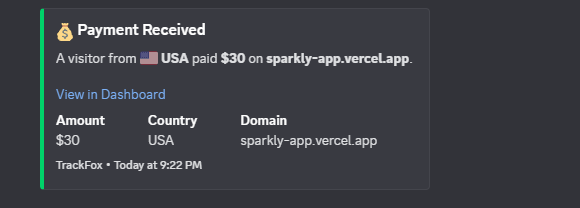 Example of a Discord notification when a custom event is triggered
Step 1: Get Your Discord Webhook URL
Before setting up automation in TrackFox, you need to create a webhook in your Discord server.
Creating a Discord Webhook
- Open Discord and navigate to your server
- Decide on which text channel you want the alerts in and press the cog next to the channel name
- In the left sidebar, click on Integrations
- Click on Webhooks then click on Create Webhook (or New Webhook if you already have one)
- Click on the newly generated Webhook
- Click Copy Webhook URL - you'll need this in the next step
Note: Keep your webhook URL private. Anyone with the URL can send messages to your Discord channel.
Step 2: Connect Discord in TrackFox
- Go to your dashboard and select the website you want to set up automation for
- Click on the dropdown menu for your website in the top left of your dashboard
- Click on Site Settings
- Navigate to the Automations tab
- In the Discord Webhooks section, paste your webhook URL
- Click Connect Discord
Once connected, you'll see a confirmation message and your webhook URL will be displayed.
Step 3: Configure Event Notifications
After connecting your webhook, you can configure which events trigger notifications.
Event States
Each custom event can be in one of two states:
- Active 🔔: Event will trigger Discord notifications
- Muted 🔕: Event will not trigger notifications (default state)
Setting Event States
- In the Automations tab, scroll to the Events section
- You'll see a list of all custom events that have been tracked on your website
- Click on any event to toggle between Active and Muted states
Step 3: Test Your Webhook
Before relying on automation, test that your webhook is working correctly:
- In the Automations tab, click the Test button
- You should receive a test notification in your Discord channel
- The notification will appear as a green embed with the title "🧪 Test Notification"
Note: The Test button is only available when you have at least one Active event configured.
Disconnecting Your Webhook
To disconnect your Discord webhook:
- In the Automations tab, scroll to the bottom
- Click the Disconnect button
- Confirm the disconnection in the popup
Warning: Disconnecting will stop all notifications. You'll need to reconnect and reconfigure event states if you want to re-enable notifications later.
Next Steps
Now that you've set up Discord automation:
Need help? Contact us for assistance.
Suggest features? We'd love your feedback