
Get your API key
Your API key lets you access your TrackFox analytics data without using the app. This guide will show you how to obtain and configure your API key.
Prerequisites
Before you can get your API key, you need:
- A TrackFox account
- At least one website added to your account
- Admin access to the website (not a teammate access)
Step 1: Navigate to Website Settings
- Go to your dashboard and select your website
- Click on the dropdown menu for your website in the top left of your dashboard
- Click on "Site Settings"
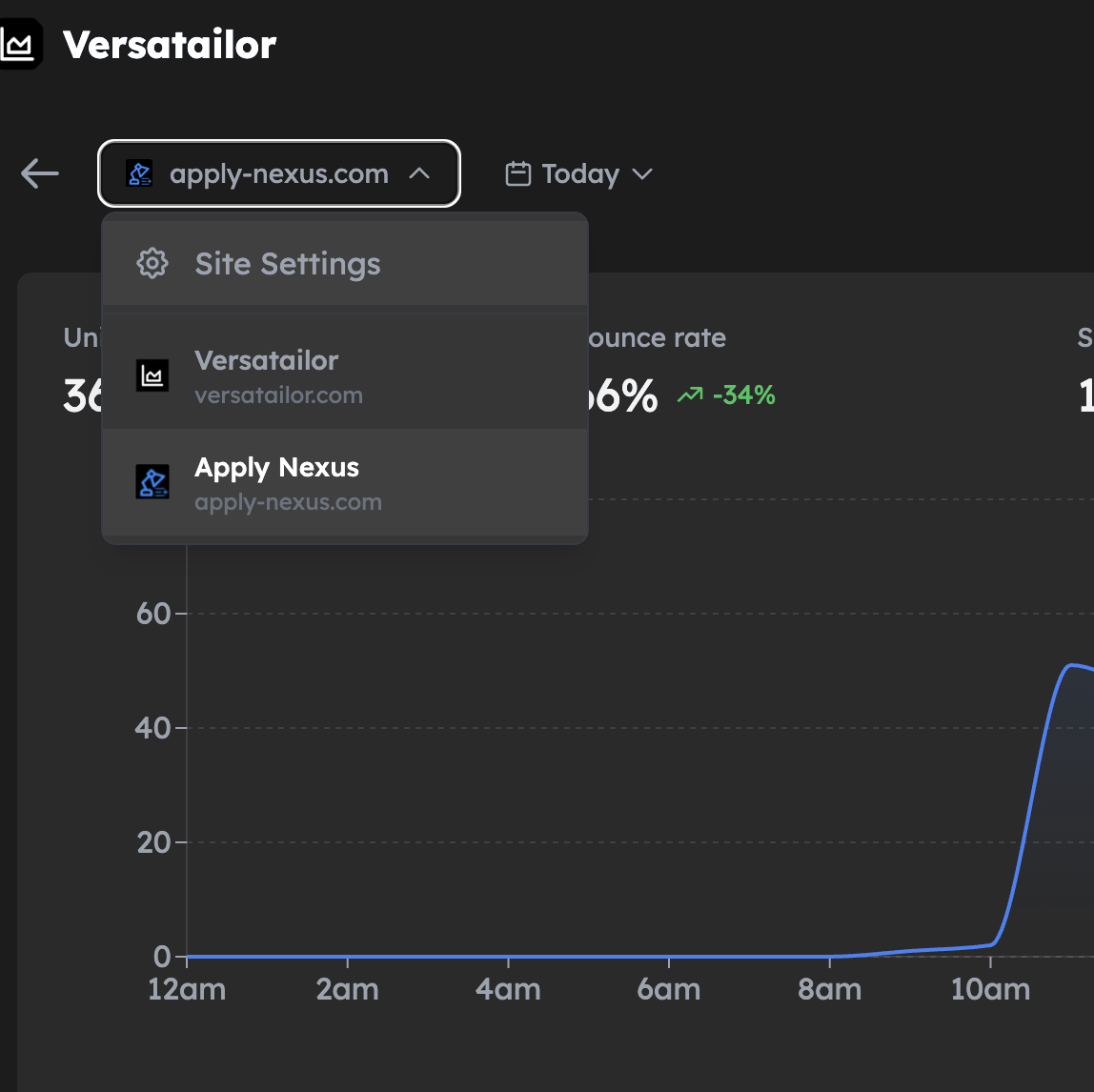
Step 2: Generate API Key
- Under "API" tab, you'll be able to generate your API key for that website
- Be sure to copy it immediately as we won't be able to show it to you again for security reasons
- Do NOT commit this key to source control and keep it safe
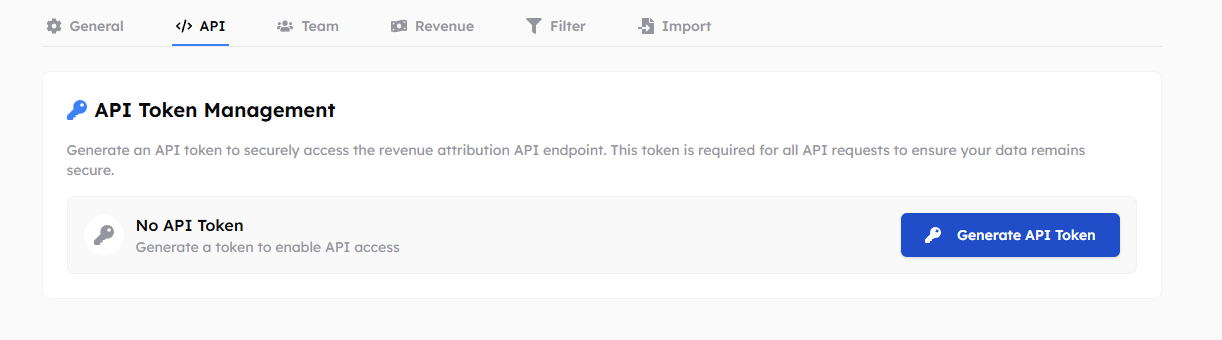
Step 3: Configure Environment Variables
Add your API key to your environment variables:
# .env.local
TRACKFOX_API_KEY=your_api_key_here
TRACKFOX_WEBSITE_ID=your_website_id_here
Using Your API Key
Basic Authentication
Include your API key in the Authorization header:
const response = await fetch("https://trackfox.app/api/v1/realtime", {
  headers: {
    Authorization: `Bearer ${process.env.TRACKFOX_API_KEY}`,
    "Content-Type": "application/json",
  },
});
Example: Fetching Real-time Data
async function getRealtimeVisitors() {
  const response = await fetch("https://trackfox.app/api/v1/realtime", {
    headers: {
      Authorization: `Bearer ${process.env.TRACKFOX_API_KEY}`,
      "Content-Type": "application/json",
    },
  });

  const data = await response.json();
  return data;
}
Troubleshooting
Invalid API Key Error
If you receive an "Invalid API Key" error:
- Verify the API key is correct
- Check that the key hasn't expired
- Ensure you're using the correct website ID
- Contact support if the issue persists
Next Steps
Now that you have your API key, you can:
Need help? Contact us for assistance.
Suggest features? We'd love your feedback